
 install AltStore iOS – Sideload iPA files & Apps on iPhone/iPad
 About this App
Do you want to install your favorite apps, emulators and games on your iPhone that are not available on App Store? Then Download & Install AltStore a powerful alternative app store, that allows you to sideload IPA files and install popular apps like Delta Emulator, Clip Manager, and more on your iOS 18 / 17 / 16 / 15 / 14 / 13 on iPhone, iPad and iPod touch, No jailbreak / Computer.
AltStore iOS
AltStore is a premium alternative app store for iPhone and iPad devices, that was created and developed by popular iOS developer Riley Testut. The Same Developer of Popular GBA4iOS, Delta Emulator and NDS4iOS emulator apps. This Alt Store uses your Apple ID to sign and install apps directly on your iOS Device without need of jailbreak or any complicated process.
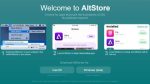
Unlike traditional sideloading methods, AltStore iOS works by using iTunes Wi-Fi sync feature to install applications. That means you need to have AltServer running on your Windows PC or Mac Computer. The AltServer is a companion app that sits in background and helps to install apps on your iPhone or iPad Device. This is completely safe method and you don’t need to worry about losing your warranty or damaging your device.
The best part is Alt Store automatically refreshes all installed apps every 7 days in the background. So you don’t need to manually resign apps again and again. Just make sure your iPhone connected to same Wi-Fi network where your computer running AltServer. Currently, This emulator supports iOS 12.2 and all latest versions including iOS 18 with rich features.
AltStore iPhone Features
- AltStore is a powerful alternative app marketplace.
- It supports all iOS versions from iOS 12.2 to iOS 18.
- No jailbreak required to install third-party apps.
- Auto-refresh apps every 7 days in background.
- Compatible with iPhone, iPad and iPod touch device.
- Install IPA files directly from your device.
- Works with free Apple ID account.
- Support iCloud, Dropbox and Google Drive sync.
- Install up to 3 apps at same time with free account.
- Clean Interface & Perform very fast.
- Open-source project, so completely safe.
- iTunes Wi-Fi sync support.
- Install popular emulators and tweaked apps easily.
- Regular updates with bug fixes.
- No hidden malware or virus.
How to Download AltStore for iPhone & iPad
Alt Store Download process is little different from other emulator apps. Because this is a alternative app installer, you cannot see this app on Official Apple App store due to their terms and conditions. But don’t worry, in this guide we provided complete step-by-step process to download and install AltStore IPA on your non-jailbreak iPhone or iPad Device.
First, you need to download AltServer on your Windows PC or Mac Computer. Then you can install AltStore App on your iOS Device through AltServer. The whole process takes only 5-10 minutes and very easy to follow. This is completely safe method and trusted by millions of iOS users worldwide.
Before starting the installation process, make sure you have latest version of iTunes and iCloud installed on your computer. Remember, you should download iTunes from Apple official website, not from Microsoft Store. Because Microsoft Store version doesn’t support Wi-Fi sync feature that required for AltStore.
Install AltStore on iPhone Using Windows PC
Step.1) First of all, Download and Install latest version of iTunes and iCloud from Apple official website on your Windows 10 or Windows 11 computer.
Step.2) Now visit AltStore.io official website and Tap on Download AltServer for Windows button to download the AltServer application.
Step.3) After download completed, Extract the ZIP file and Install AltServer on your computer. Then launch the AltServer application.
Step.4) When you launch AltServer, it will show an icon in system tray notification area. If you don’t see icon there, then click on show hidden icons arrow.
Step.5) Now connect your iPhone or iPad to computer using USB cable or lightning cable. Then Trust the computer on your iOS Device when pop-up message appears.
Step.6) Open iTunes application and select your connected iPhone from top left corner. Now enable Sync with this iPhone over Wi-Fi option and click Apply button.
Step.7) After that, you can disconnect USB cable from your iPhone. Now both devices should be on same Wi-Fi network.
Step.8) Right-click on AltServer icon in system tray and select Install AltStore option. Then choose your iPhone or iPad from list.
Step.9) Now enter your Apple ID and Password when pop-up appears. Don’t worry, your Apple ID information is completely safe and only sent to Apple servers for signing apps.
Step.10) Wait few minutes and AltStore App will be installed on your iPhone home screen successfully.
Step.11) If you see “Untrusted Enterprise Developer” error when opening app, then follow below steps to fix it.
Go to Settings >>> then Navigate to General >>> Now go to VPN & Device Management or Profile & Device Management section >>> Find your Apple ID profile and Tap on it >>> After that Tap on TRUST from Pop-up Message.
Step.12) Finally, Launch the Alt Store iOS app and start installing your favorite IPA files on iPhone for free.
How to Download AltStore on Mac Computer
Step.1) At first, visit AltStore.io official website from Safari browser on your Mac Computer.
Step.2) Like wise, Tap on Download AltServer for Mac button to download the application. Make sure you have macOS 11 or later version.
Step.3) After that, Open the downloaded file and move AltServer.app to your Applications folder on Mac.
Step.4) Now Launch the AltServer application and it will appear as an icon in Mac menu bar at top.
Step.5) Connect your iPhone or iPad to Mac using USB cable. Then Trust the computer on your iOS Device.
Step.6) After that, Click on AltServer icon in menu bar and select Install AltStore option. Then choose your connected device.
Step.7) Enter your Apple ID and Password when asked. This information only used for app signing purpose.
Step.8) Wait some time and AltStore Download process will complete automatically on your iPhone or iPad.
Step.9) Go to your iOS Device Settings and Trust the developer profile from below path.
Settings >>> General >>> Device Management >>> Tap on your Apple ID >>> Select TRUST option.
Step.10) Finally, Open the AltStore iPhone app and enjoy sideloading apps without jailbreak.
How to Install IPA Files Using AltStore
Once you successfully installed AltStore iOS on your iPhone or iPad, now you can easily install any IPA files on your device. There are two different methods to add IPA files to AltStore. Both methods works perfectly, so you can use any method that you prefer.
Install IPA Files from Safari Browser:
- Launch Safari browser on your iPhone and search for the IPA file that you want to download.
- Download the IPA file from trusted source to your device.
- After download completed, go to Files app or Downloads folder.
- Tap on the downloaded IPA file and select Open in AltStore option.
- Now Alt Store will sign and install the app on your device automatically.
- Wait few minutes and app will appear on your iPhone home screen.
Install IPA Using AltStore App:
- Open the AltStore App on your iPhone or iPad Device.
- Tap on My Apps tab at bottom of screen.
- Now Tap on Plus (+) icon at top right corner.
- Select the IPA file from your device storage.
- Similarly, AltStore will start signing and installing process.
- Once installation completed, you can launch the app directly from home screen.
AltStore vs Other Sideloading Methods
AltStore is one of the best and safest method to sideload apps on iPhone without jailbreak. Compared to other methods like Sideloadly, SideStore and TrollStore, AltStore offers automatic app refresh feature that saves your time. You don’t need to manually refresh apps every week.
The main advantage of AltStore iOS is its clean interface that looks similar to App Store. This makes it very easy to use for beginners and school students. Other sideloading tools like Sideloadly only works on computer and doesn’t have mobile app interface.
However, with free Apple ID account, you can only install up to 3 apps at same time. But this is Apple limitation, not AltStore limitation. If you need to install more apps, then you can remove one app and install another app easily.